
Getting started with WIN_DASI
From installation to your first backup in about five minutes. All you need to know is which folders matter to you and where they should be backed up.
Preparation: the destination
Connect the drive you want to back up to, for example an external USB drive, or connect the network share. Do not back up to the same drive that holds your originals: if it fails, both would be lost.
Step 1: start the wizard
On first start the profile list is empty. Click Create profile with wizard. Later you will find the wizard in the Profiles view.
Step 2: name
Give the profile a name that says what it backs up, for example “Accounting daily” or “Photo archive”. Each name can be used only once.
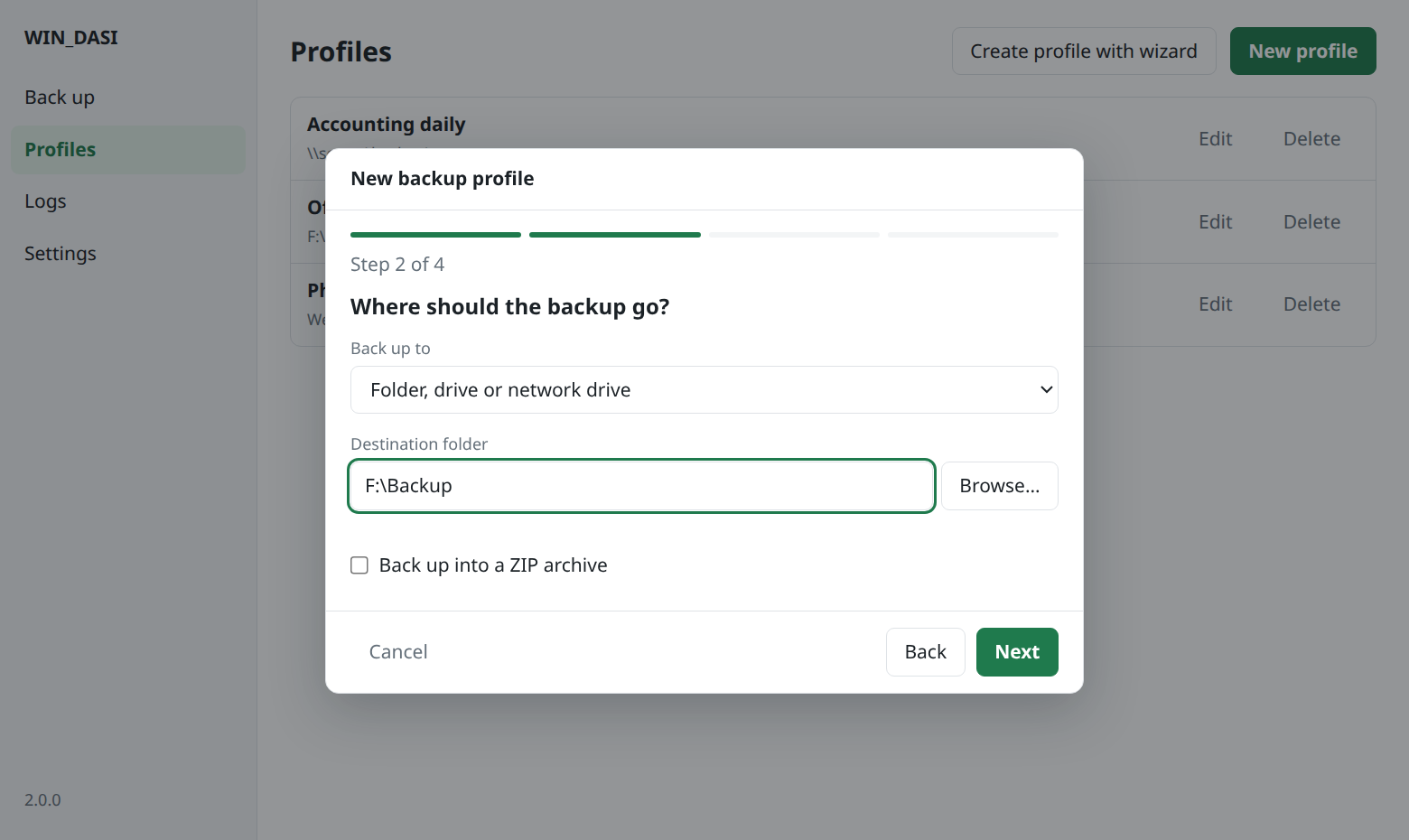
Step 3: destination folder
Use Browse… to choose the folder the backup should go to, or type the path, for instance F:\Backup or \\server\backup\office. If the backup should be a single file, tick Back up into a ZIP archive here.
Step 4: selection
Click Change selection…. The file selection opens:
- In the upper area you browse drives and folders. Clicking a folder name opens it; Up one level takes you back.
- Tick the folders and files that should be backed up.
- Click Add. The selection appears at the bottom under Will be backed up, together with the number of folders and files and the total size.
- Apply returns you to the wizard.
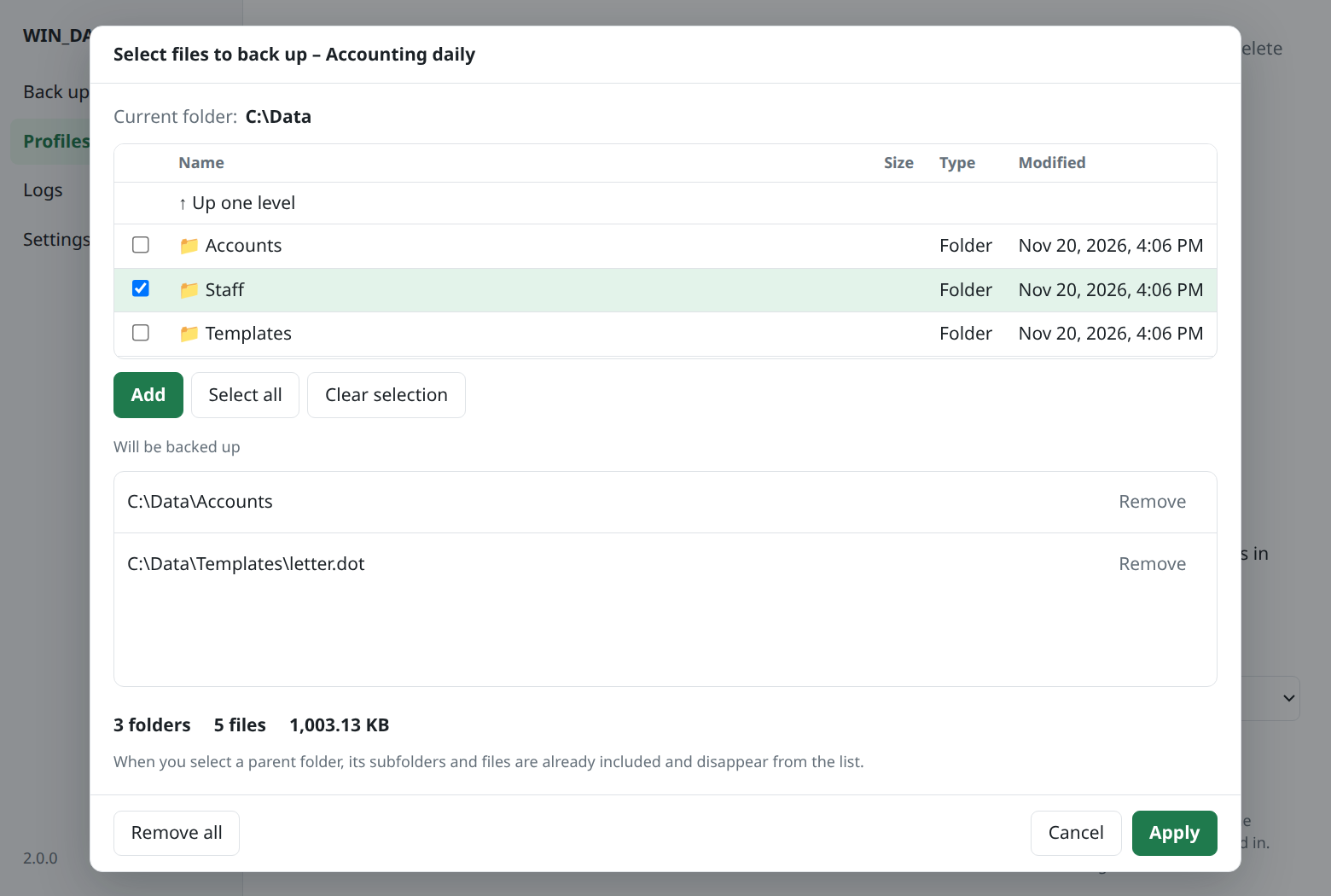
The selection is inclusive: when you select a parent folder, its subfolders are already included and disappear from the list.
If you only want to back up certain file types, enter a file filter, for example *.docx;*.xlsx.
Step 5: summary and first backup
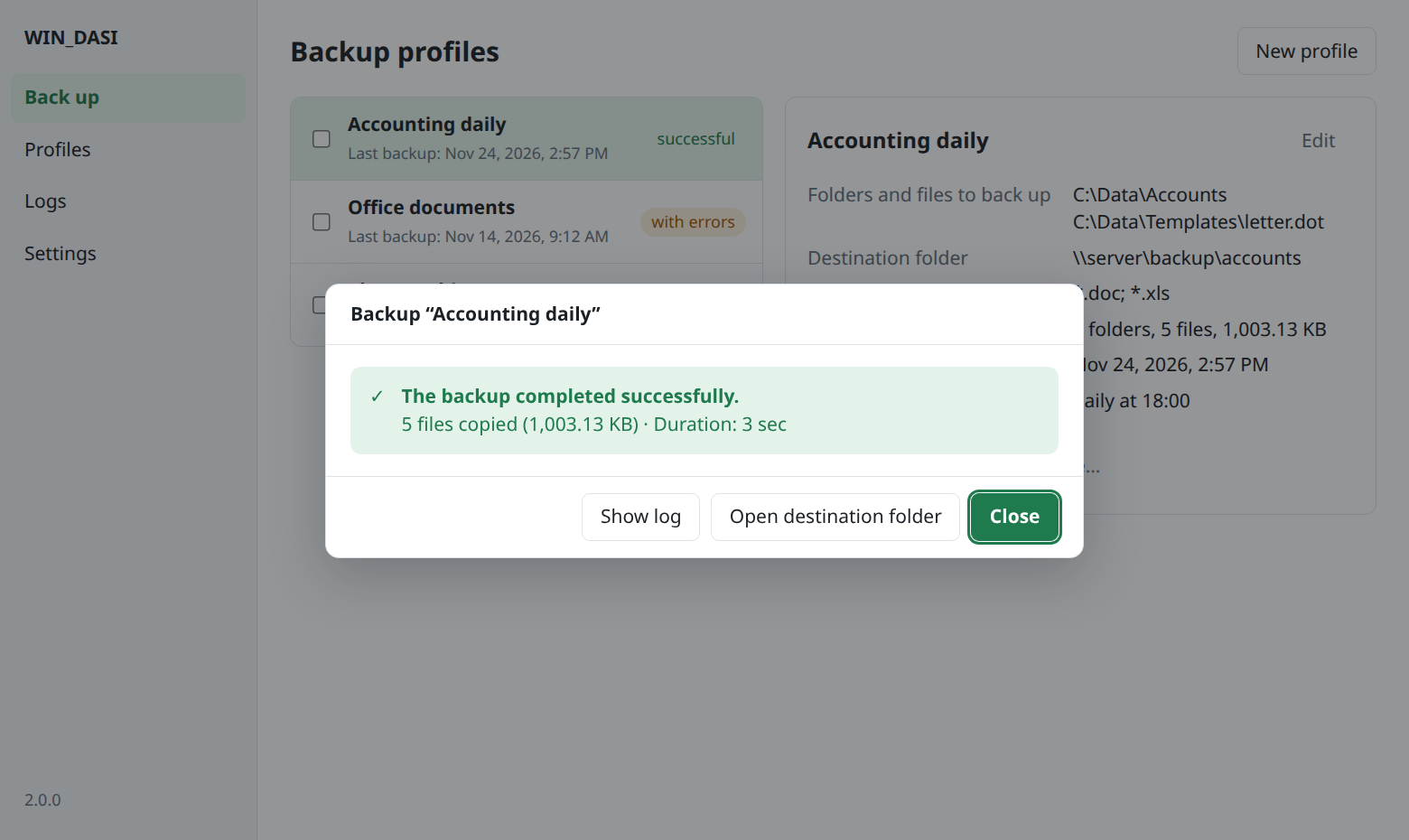
The last step shows all the details. Tick Start the backup right afterwards and click Create profile. WIN_DASI counts the files, copies them and shows the result at the end.
Check that everything is there
Use Open destination folder to open the destination in the file manager. Your folders are there as ordinary files, along with the log WIN_DASI.LOG. Open one of the backed-up files as a test.
What next?
- To make backing up a habit: create an express icon on the desktop or switch on the automatic backup.
- The remaining settings of a profile are described in Backing up and editing profiles.
- Try out restoring once before you need it.