
WIN_DASI features
WIN_DASI backs up selected folders and files to a destination folder. A backup profile records what is backed up and where to. This page describes what the program can do – and what it deliberately does not do.
Backup profiles
A profile describes one backup: the sources, an optional file filter, the destination and the settings. You can create any number of profiles, for example one for accounting that runs every day and one for the photo archive that is backed up once a week.
- Wizard: takes you to your first profile in four steps.
- Folders and single files: both can be mixed in one profile. If you select a parent folder, its subfolders are already included.
- Size at a glance: the program shows the number of folders and files and the total size before you back up.
- Several profiles in one run: tick them and start them together.
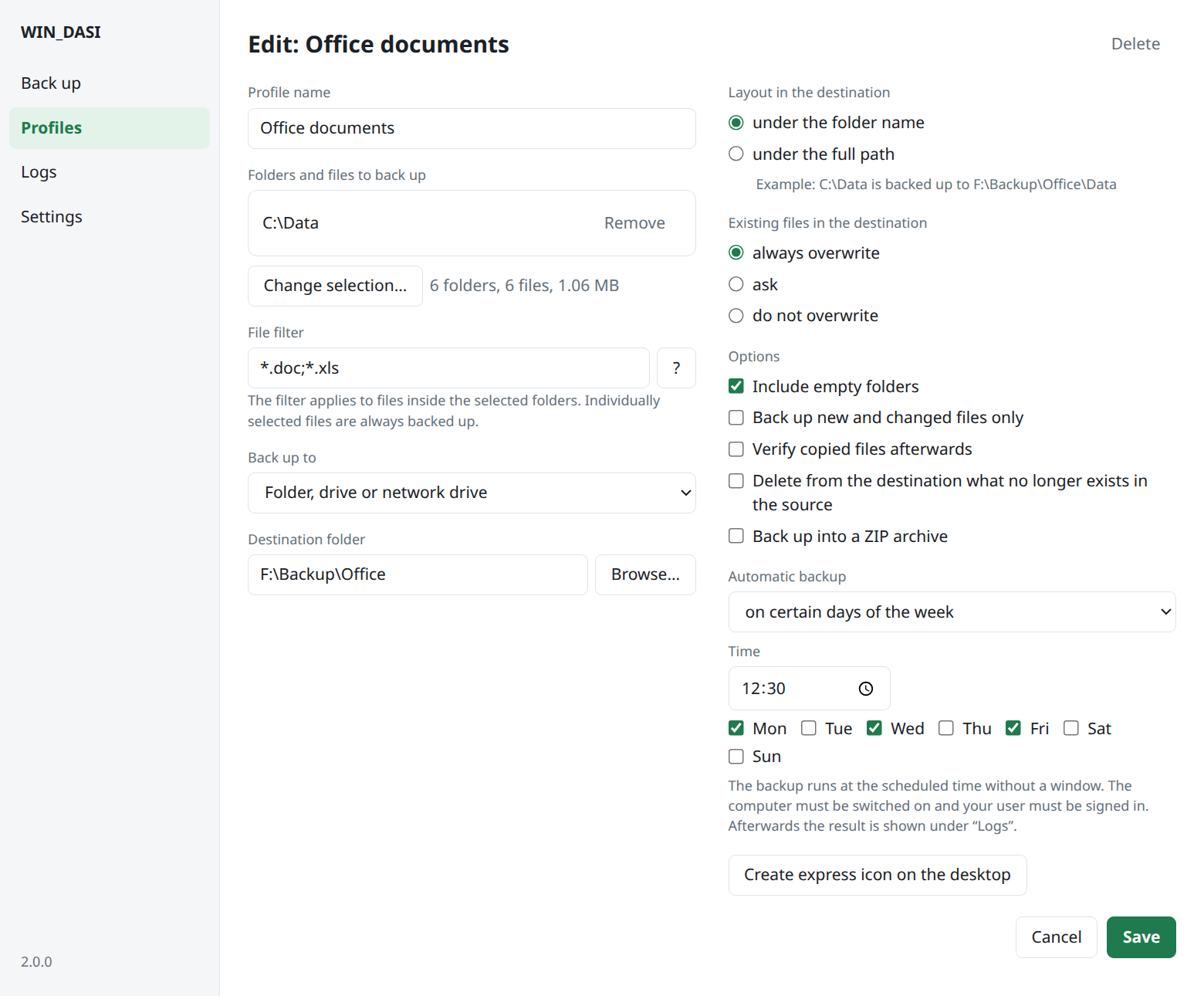
File filters
A filter restricts the backup to certain file types, for example *.docx;*.xlsx;*.pdf. That saves time and space when a folder contains large files you do not need alongside the documents. Ready-made templates exist for Word, Excel, Office, PDF and images. File filters in detail
Destinations
The backup goes into a folder or to remote storage. Where the folder is, you decide:
- on an external USB drive or USB stick,
- on a second built-in drive,
- on a network share or NAS, also via a network path such as
\\server\backup.
If the destination folder is missing, the program asks instead of silently backing up somewhere else. That way you notice when a drive is not connected.
Cloud and servers
For the off-site copy, WIN_DASI also backs up to remote storage:
- WebDAV: Nextcloud, ownCloud, many NAS devices and hosting providers,
- S3-compatible storage: Amazon S3, Backblaze B2, Wasabi, Hetzner Object Storage, MinIO,
- SFTP servers with a password or key file; the fingerprint of the server is checked on every backup,
- OneDrive, Google Drive and Dropbox after a one-time setup, with sign-in in your browser.
Credentials are kept in the key store of the operating system, not in the profile. As a ZIP archive with a password, the data is encrypted before it is uploaded. Backing up to the cloud and to servers
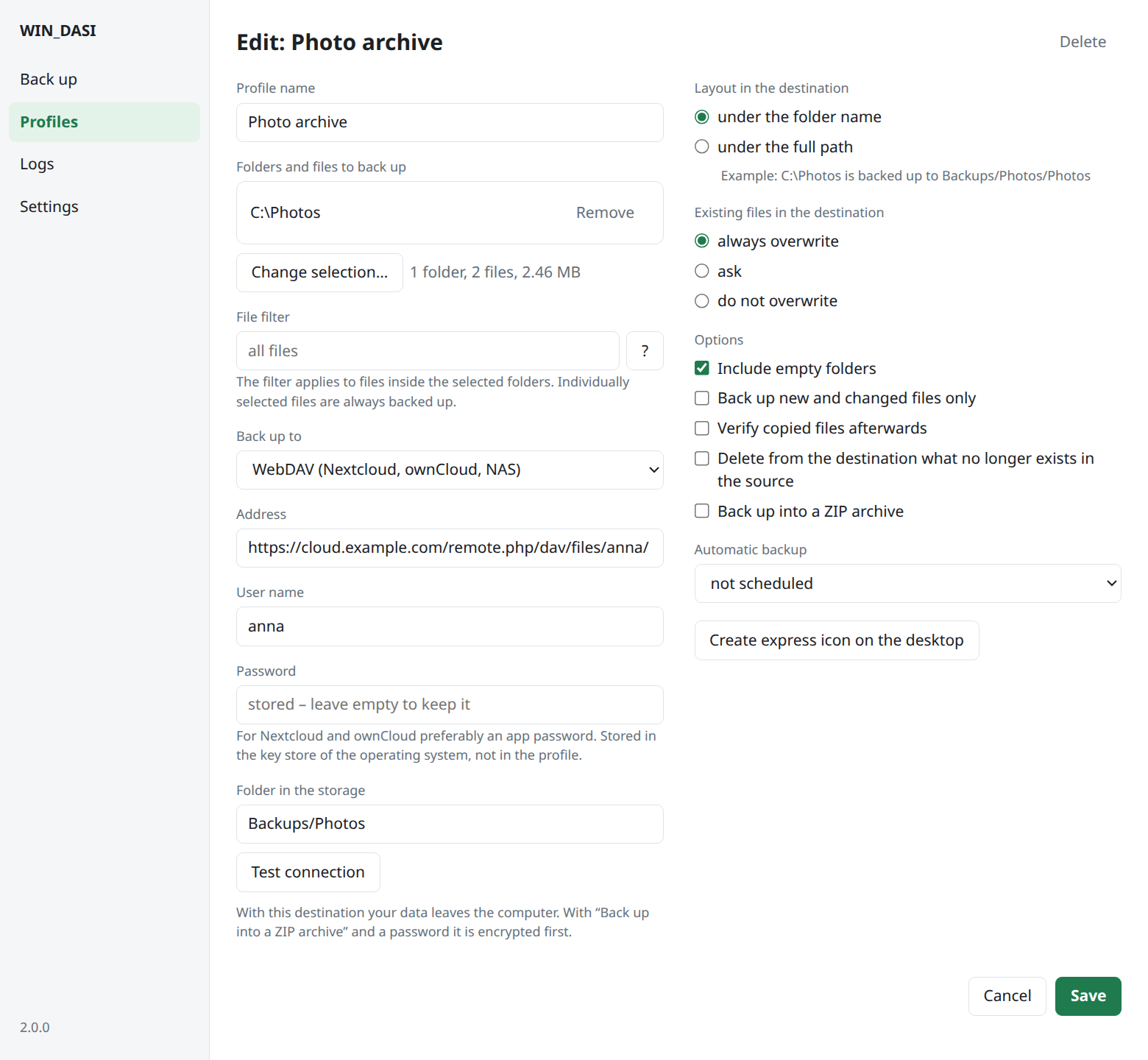
Layout in the destination
For each profile you choose how folders are stored in the destination: briefly under their folder name (F:\Backup\Accounts) or under the full path (F:\Backup\C\Data\Accounts). The second form keeps folders with the same name apart and shows where a file came from.
Express backup
An icon on the desktop can be created for every profile. A double-click starts the backup immediately. Only a small window with progress and result opens. The icon always runs the current state of the profile, even if the profile is changed or renamed later. Setting up express backup
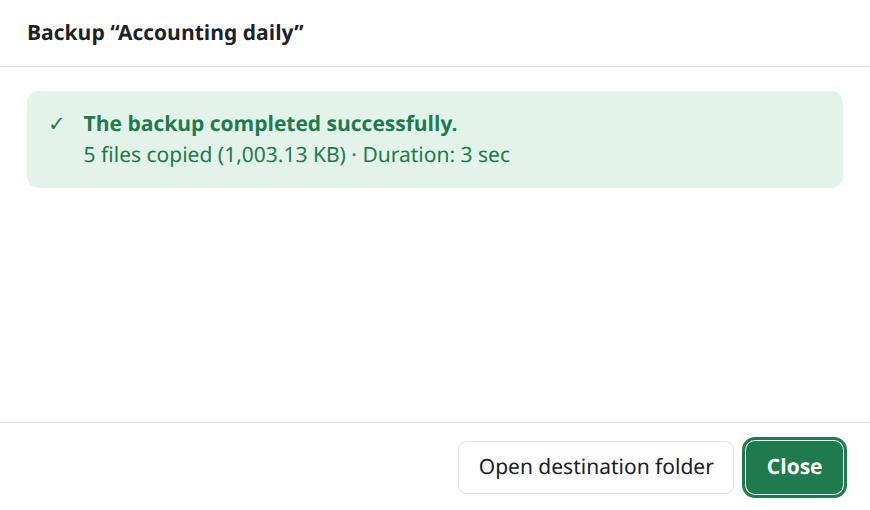
Automatic backup on a schedule
For each profile you decide whether it is backed up daily or on certain days of the week at a given time. WIN_DASI registers a task with the scheduler of the operating system: Task Scheduler on Windows, the crontab on Linux. The program does not have to be open for this and does not run permanently in the background. Setting up automatic backup
ZIP archive and password
Instead of individual files WIN_DASI can write a ZIP archive. On request it is encrypted with a password (AES-256). The password is not stored in the profile but in the keychain of the operating system. The archive can be opened with common archive programs that support AES-encrypted ZIP files. ZIP archive and password
Back up only what changed, verify copies
- New and changed files only: files that are already in the destination with the same size and modification time are skipped. The second backup of a large folder then takes only a fraction of the first.
- Verification after copying: on request every copy is compared with the original using a checksum.
- Safe writing: each file is first written under a temporary name and only renamed once it has been copied completely. Cancelling leaves no half-written files behind.
- Existing files: always overwrite, ask, or do not overwrite.
- Deleting from the destination: optional and off by default. When switched on, it removes from the destination what was deleted in the source – only inside the backed-up folders and never when the source could not be reached during the backup.
Restore
A backup is only as good as the way back. WIN_DASI brings the backed-up data of a profile back: to the original location or to a different folder. By default existing files are kept; only what is missing is brought back. Restoring data
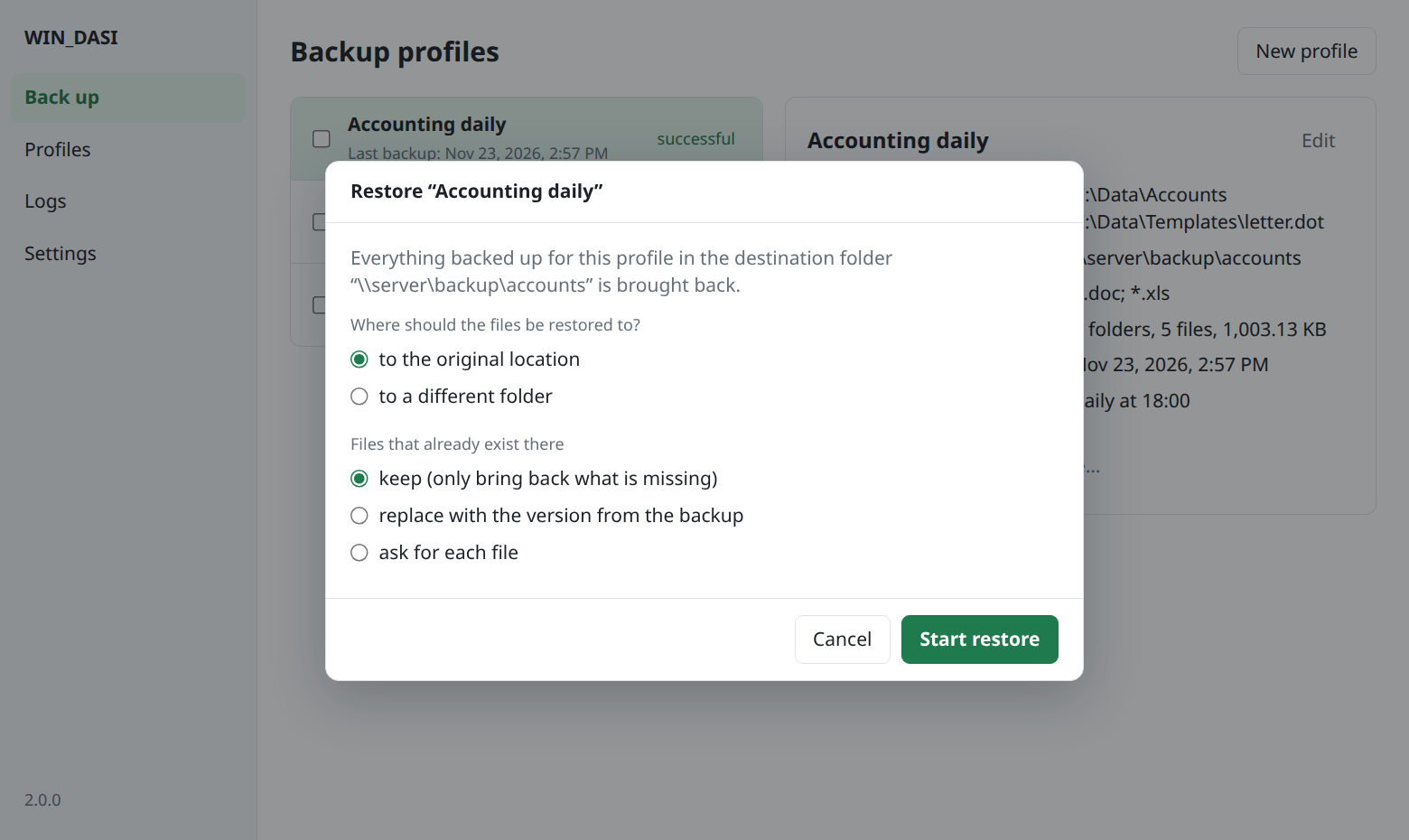
Log
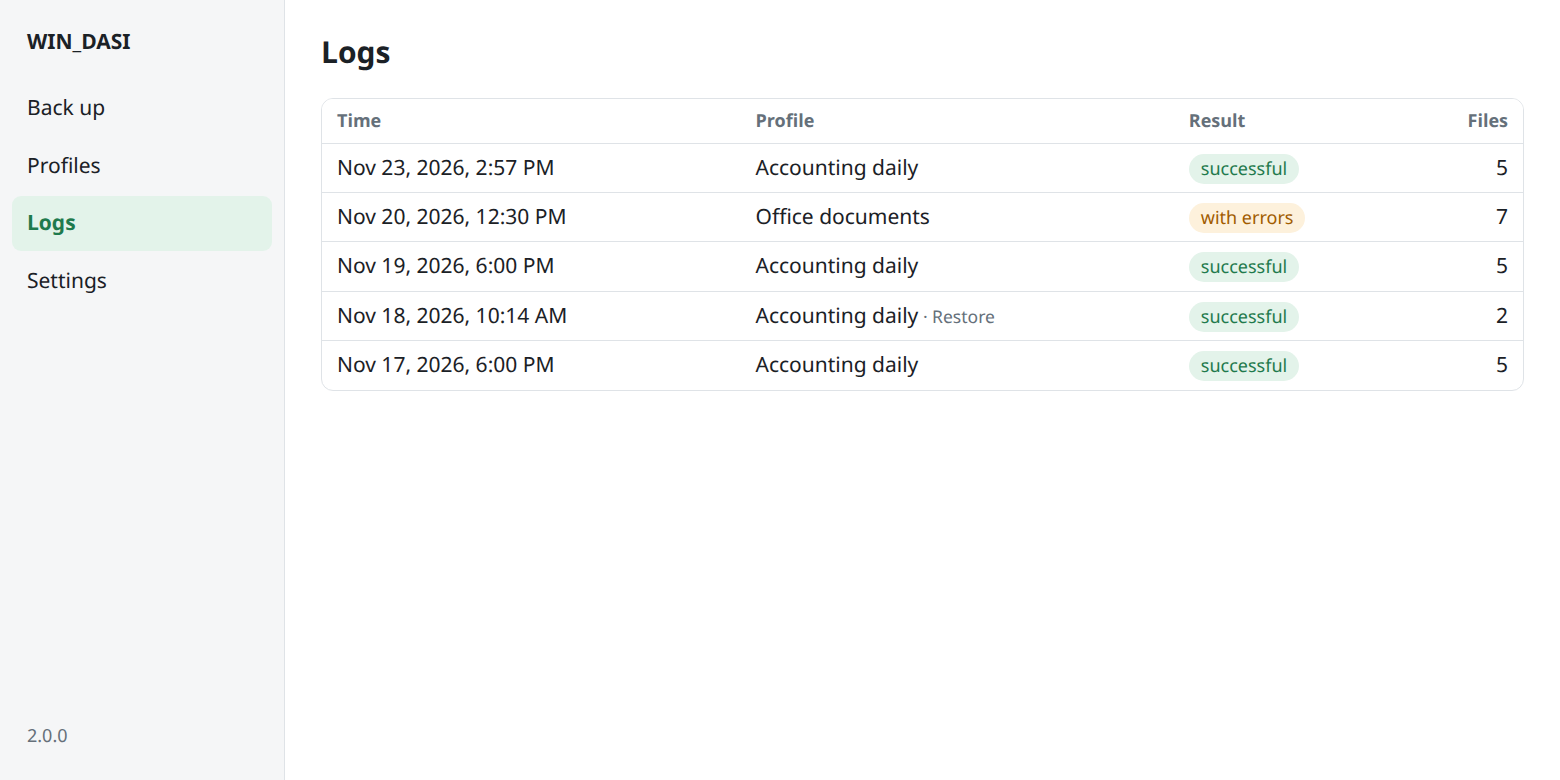
Every run produces a log with time, result, number of files and all errors. If a file could not be backed up, for instance because another program had it open, it is listed in the log with the reason; all other files are backed up regardless. In addition, the file WIN_DASI.LOG is placed in the destination folder after every backup.
Command line
The program windasi-cli, a separate download, backs up without a window and never asks questions. It is suited to your own scripts and to computers without a graphical desktop. Command line
Languages and appearance
The interface is available in English and German and can be switched without restarting. When a new version is released, the program points it out at startup and takes you to the download page; nothing is installed on its own, and the notice can be switched off. The program follows the light or dark appearance of the operating system, or a fixed setting if you prefer.
What WIN_DASI is not
So that you can choose the right tool, here are the limits:
- Not an image of the whole system: WIN_DASI backs up files and folders, not Windows or installed programs. To restore a complete computer you need imaging software.
- No version history: the current state is backed up. The program does not keep older versions of a file separately. If you need several states, back up with several profiles to alternating drives.
- No locked open files: files that another program holds open exclusively are skipped and named in the log.
- No burning to CD or DVD.
- Links (symbolic links) are not followed.