
The backup you will actually run
WIN_DASI backs up your important folders and files to a USB drive, a second drive or a network share. Set it up once; after that a double-click is enough – or the program backs up on a schedule by itself.
- Backup profiles for different jobs
- Express icon on the desktop: double-click, done
- Automatically every day or on fixed days of the week
- Backup as ordinary files or as a password-protected ZIP
For Windows 10 and 11 and for Linux · interface in English and German
Why keep your own backup?
A hard drive can fail, a laptop can be stolen, a file can be overwritten by mistake or encrypted by malware. In every one of these cases only a copy stored somewhere else will help. Most data loss does not happen because a backup was technically impossible, but because it was too much trouble and therefore never got done.
WIN_DASI is built for exactly this gap: whoever sets up the backup decides once what goes where. Whoever runs it needs to know nothing about it. More on this in the guide to backups in small businesses.
Three ways to back up
Express backup
An icon on the desktop starts the backup straight away. Only a small window with progress and result appears. Made for everyone who simply wants to back up.
Profile backup
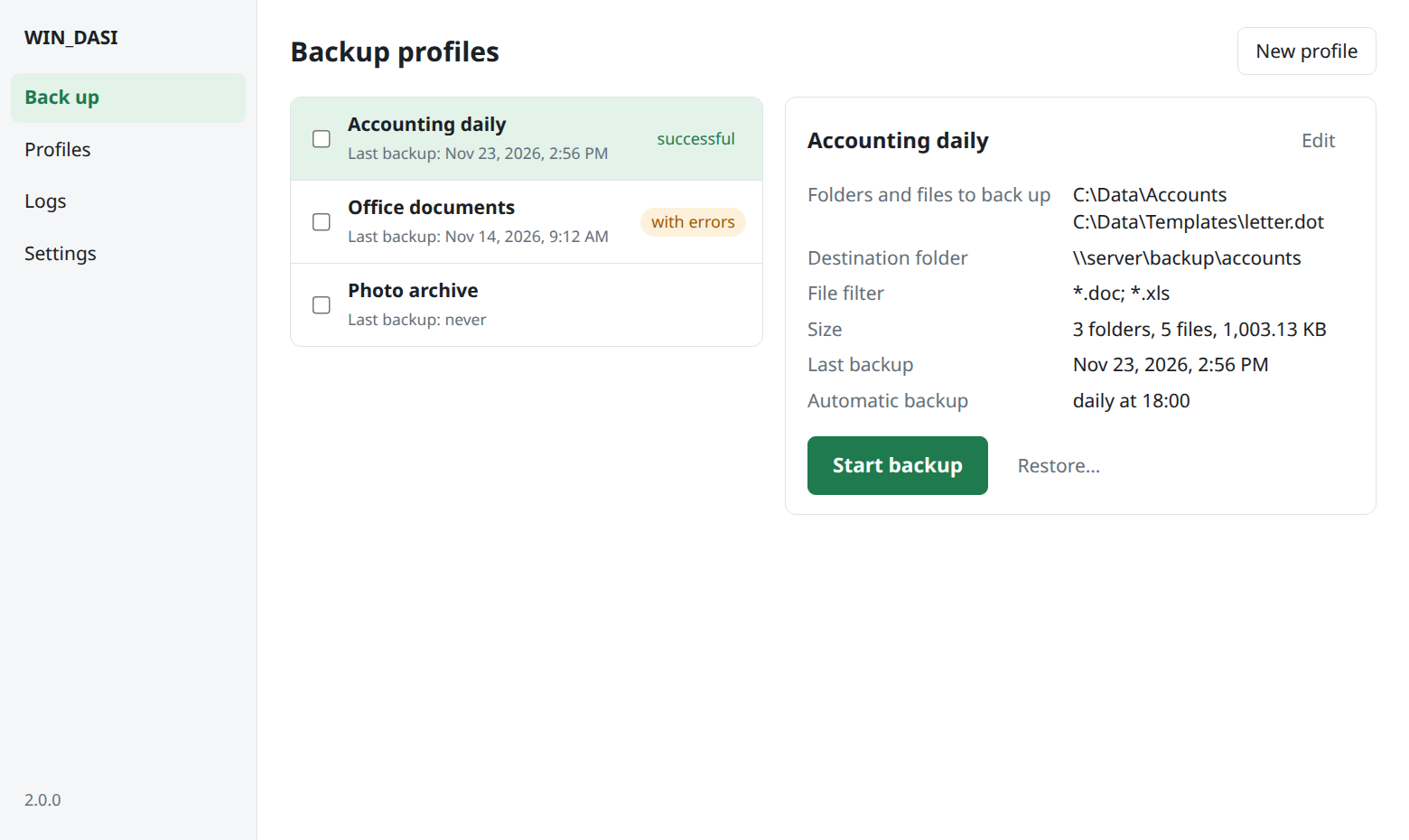
In the program you see all profiles with their size and last backup. Start one profile or several at once – accounting every day, photos once a week.
Automatic backup
For each profile you set a time and the days of the week. WIN_DASI then backs up in the background without a window and logs the result.
How to set up WIN_DASI
- Create a profileThe wizard asks for a name, the destination folder and the folders to be backed up.
- Choose what mattersWhole folders or individual files, filtered if you like – for example only Word and Excel files.
- Back upWith a click, with the express icon or on a schedule. The log shows what was backed up.
What WIN_DASI can do
Profiles and file filters
Any number of profiles, selection of folders and single files, filters such as *.docx;*.xlsx.
Destinations of your choice
USB drive, second drive, network share or NAS – and off-site via WebDAV, S3, SFTP, OneDrive, Google Drive or Dropbox.
ZIP with password
An encrypted ZIP archive (AES-256) if you want one. The password is kept in the keychain of the operating system.
Restore
Bring backed-up data back: to the original location or to a different folder.
Only what changed, verified
On request only new and changed files are copied and every copy is compared with the original.
Log
Every run is recorded: what was copied, what failed and why.
Your backup belongs to you
WIN_DASI stores the backup as ordinary files and folders or, if you prefer, as a ZIP archive. There is no proprietary file format and no database you would need in order to open it. You can look at every backed-up file in the file manager and copy it out – even on a computer where WIN_DASI is not installed.
The program works entirely on your computer. It transmits no data to us or to third parties and needs neither a user account nor an internet connection.
Who is WIN_DASI for?
- Offices and small businesses that want to back up their working files every day to a network share or an external drive without running a large backup system.
- Administrators and IT support staff who set up an express icon for colleagues so that they can back up with a double-click.
- Home users who want to copy documents and photos regularly to a second drive.
- Users of WIN_DASI 1.x looking for a version for current operating systems. See Upgrading from WIN_DASI 1.x.
Frequently asked questions
Can WIN_DASI also back up to the cloud?
Yes. Besides storage that belongs to you – an external drive, a second drive, a network share – WIN_DASI backs up to WebDAV (for example Nextcloud), S3-compatible storage, SFTP servers as well as OneDrive, Google Drive and Dropbox. You decide per profile where the backup goes. The two can be combined, see the 3-2-1 rule and Backing up to the cloud and to servers.
Can I open the backup without WIN_DASI?
Yes. The backup consists of ordinary files and folders or of a ZIP archive. Any file manager opens both.
Does WIN_DASI run in the background all the time?
No. For the automatic backup WIN_DASI registers a task with the scheduler of the operating system. The program only starts at the scheduled time, backs up and exits again.