
Backing up and editing profiles
The “Back up” view is the starting point for everyday work. Under “Profiles” you change what a profile backs up and how.
Starting a backup
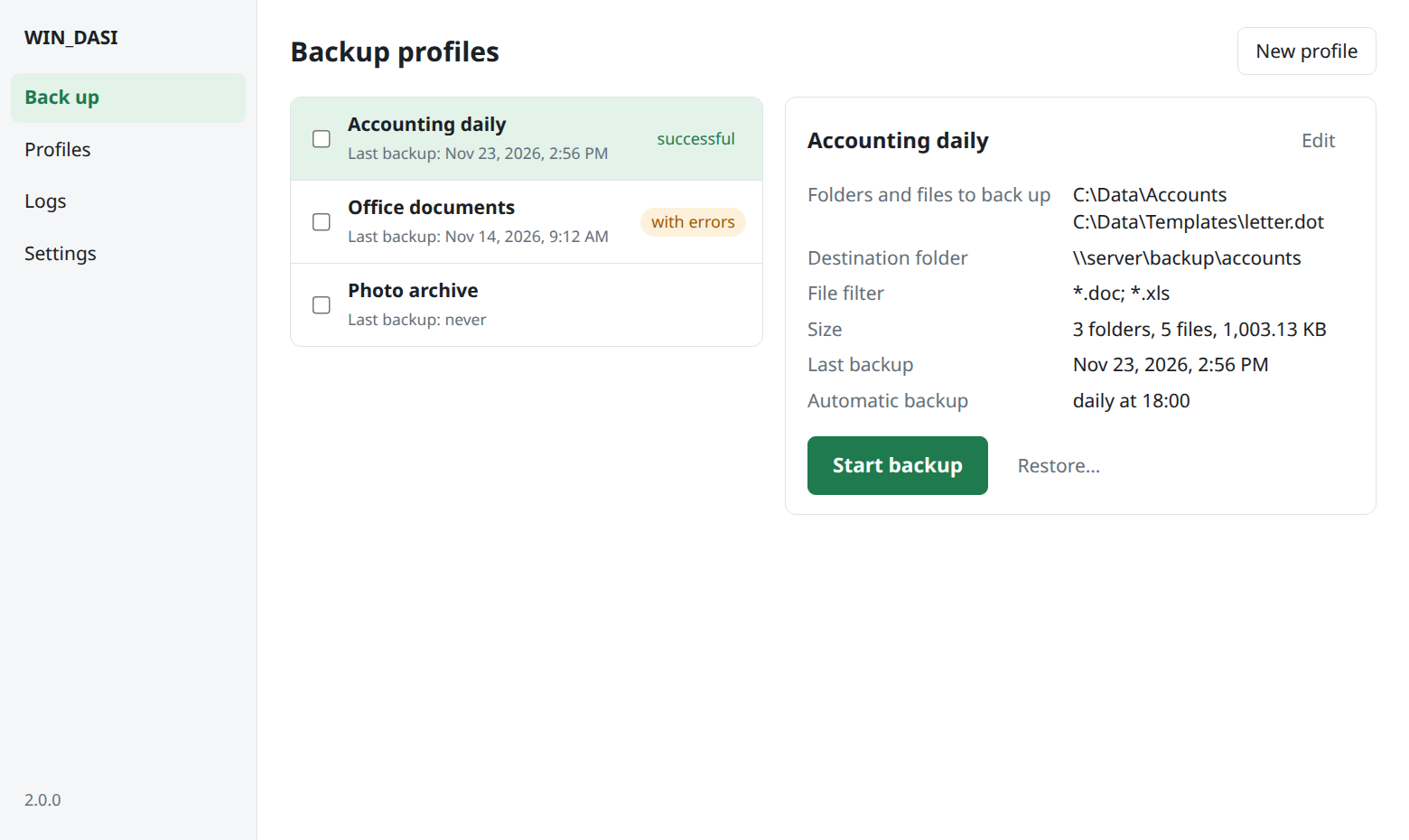
The Back up view shows your profiles on the left and the details of the selected profile on the right: sources, destination folder, file filter, size, the last backup and the schedule. Click Start backup.
To back up several profiles one after another, tick them in the list. The button then reads, for example, Back up 3 profiles.
During the backup
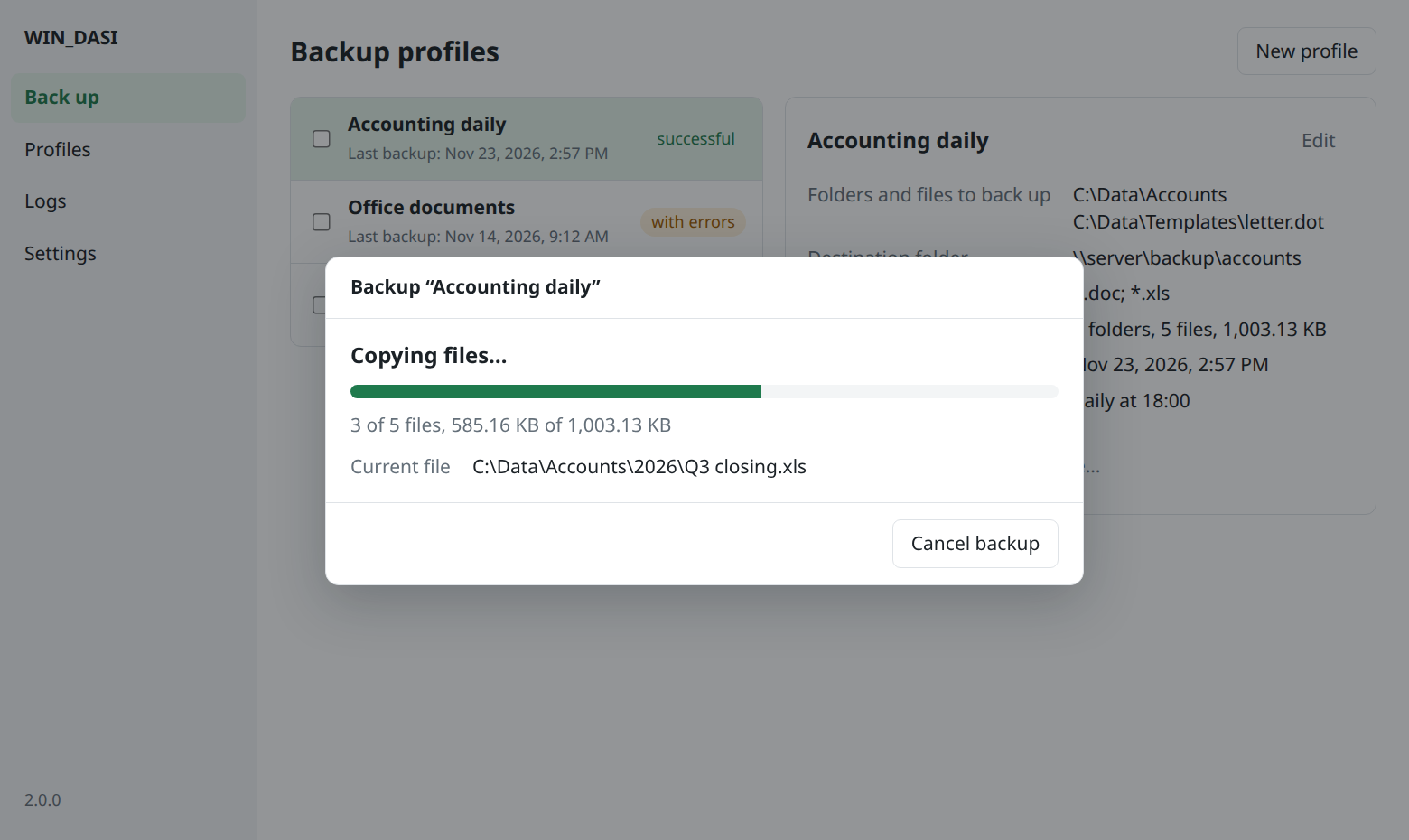
A window shows the progress, the current file and the Cancel backup button. Cancelling takes effect after the current file; files already copied stay in the destination, and no half-written files are left behind.
At the end you see the result:
- Successful: all files have been backed up.
- With errors: individual files could not be backed up. They are listed with the reason; all others have been backed up.
- Failed: the backup could not start, for instance because the destination folder is missing.
Questions during a run
WIN_DASI only asks in two cases: when the destination folder does not exist, and when the profile is set to “ask” for existing files. When asked about overwriting, you can decide for the whole run with Overwrite all or Overwrite none.
The settings of a profile
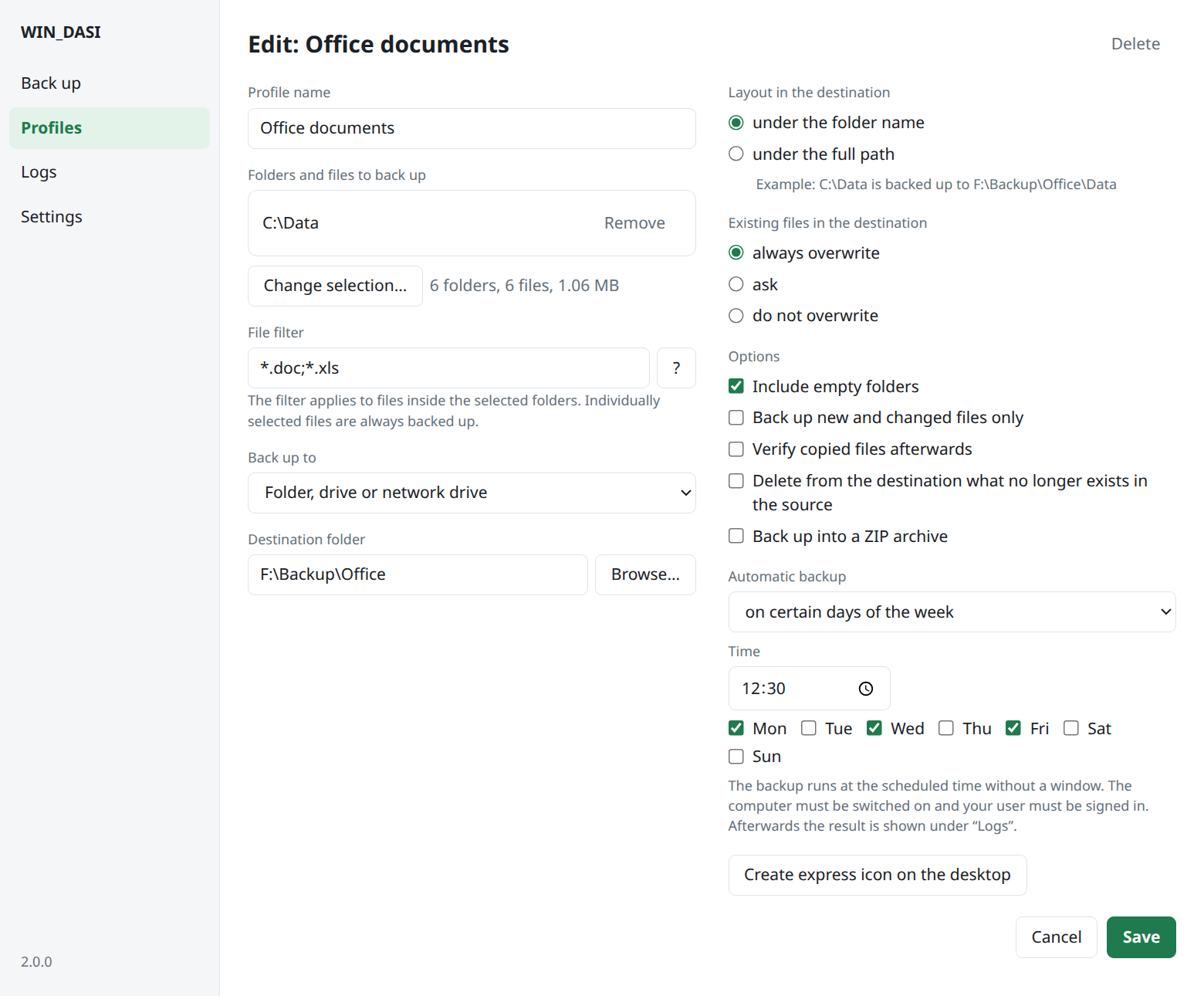
Open the profile with Edit.
| Setting | Meaning |
|---|---|
| Layout in the destination: under the folder name | The folder C:\Data\Accounts is stored in the destination F:\Backup as F:\Backup\Accounts. Short and clear. Two selected folders must then not have the same name. |
| Layout in the destination: under the full path | The same folder is stored as F:\Backup\C\Data\Accounts. The origin stays visible, and folders with the same name are possible. |
| Existing files in the destination | “always overwrite” is the usual choice for an ongoing backup. “do not overwrite” only adds what is missing in the destination. |
| Include empty folders | Folders without content are created in the destination as well, so that the folder structure stays complete. |
| Back up new and changed files only | Files that are already in the destination with the same size and modification time are skipped. Recommended for large folders. |
| Verify copied files afterwards | Every copy is compared with the original. Safer, but the backup takes longer. |
| Delete from the destination what no longer exists in the source | Keeps the destination identical to the source. See the note below. |
| Back up into a ZIP archive | See ZIP archive and password. |
Use deleting from the destination with care. With this option, files you delete in the source also disappear from the destination at the next backup. The backup then no longer protects against accidental deletion. WIN_DASI only deletes inside the backed-up folders, leaves files excluded by the filter in place and deletes nothing if a source folder could not be reached during the backup.
Deleting a profile
Under Profiles, Delete removes a profile after confirmation. The files already backed up in the destination are kept. A schedule and a stored archive password of the profile are removed with it; an express icon on the desktop you delete by hand.