
Automatic backup on a schedule
The most reliable backup is the one nobody has to think about. WIN_DASI can back up any profile daily or on certain days of the week at a fixed time.
Setting up the schedule
- Under Profiles, open the profile with Edit.
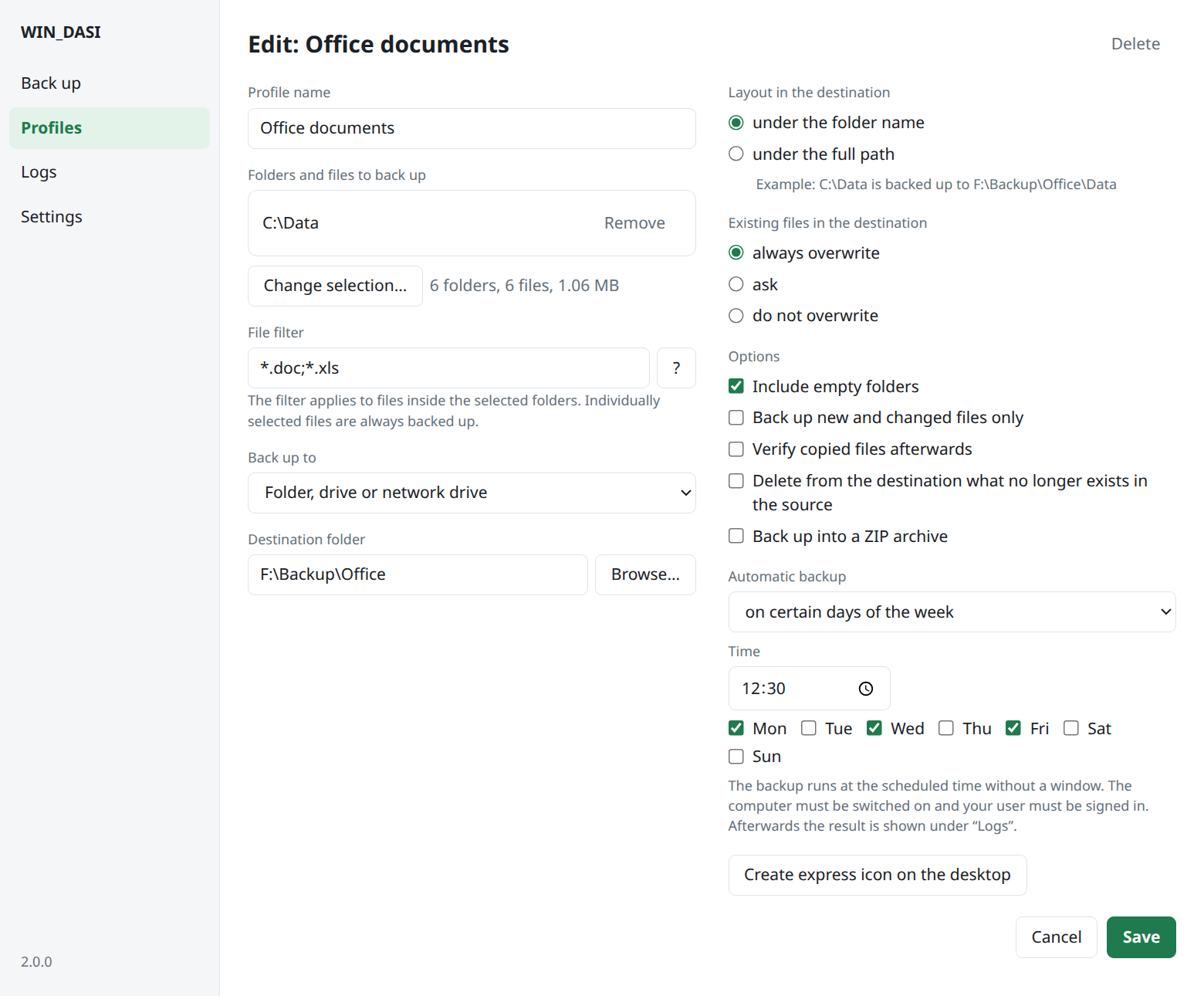
- Under Automatic backup, choose either daily or on certain days of the week.
- Set the Time and, if applicable, tick the days of the week.
- Click Save. WIN_DASI reports that the automatic backup has been set up.
In the Back up view the schedule is then shown with the details of the profile, for example “Mon, Wed, Fri at 12:30”.
What happens behind the scenes
WIN_DASI does not run permanently in the background. For the profile it registers a task with the scheduler of the operating system: Task Scheduler on Windows, your user’s crontab on Linux. At the scheduled time the operating system starts the program; it backs up without a window and exits again.
You will find the result under Logs and with the profile under “Last backup”.
Requirements
- The computer is switched on at the scheduled time and your user is signed in. A missed backup is not made up for.
- The destination folder can be reached. If it cannot, no backup is made and the log gives the reason. WIN_DASI deliberately does not create a missing destination during an automatic backup: usually a drive is not connected, and the backup should not silently end up somewhere else.
- The profile is not set to “ask” for existing files, because an automatic backup cannot ask questions.
Choosing a good time
Choose a time at which the computer is sure to be running but work is hardly disturbed – in an office, for instance, the lunch break or shortly before closing time. Backing up at night only makes sense if the computer stays switched on and the user stays signed in.
During the first few days, check the Logs view to see whether the backup ran at the scheduled time. After that an occasional look is enough.
Changing or removing the schedule
Change the time or the days in the profile and save; the entry in the operating system is replaced. Choose not scheduled to remove the automatic backup. It is also removed when the profile is deleted.