
Express backup: back up with a double-click
The express icon is meant for everyone who should back up without having to deal with the program. Whoever looks after the backup sets up the profile. Whoever runs it double-clicks.
Creating the express icon
- Under Profiles, open the profile you want with Edit. A new profile has to be saved first.
- Click Create express icon on the desktop.
- An icon named “Express backup” followed by the profile name is now on the desktop.
How the express backup runs
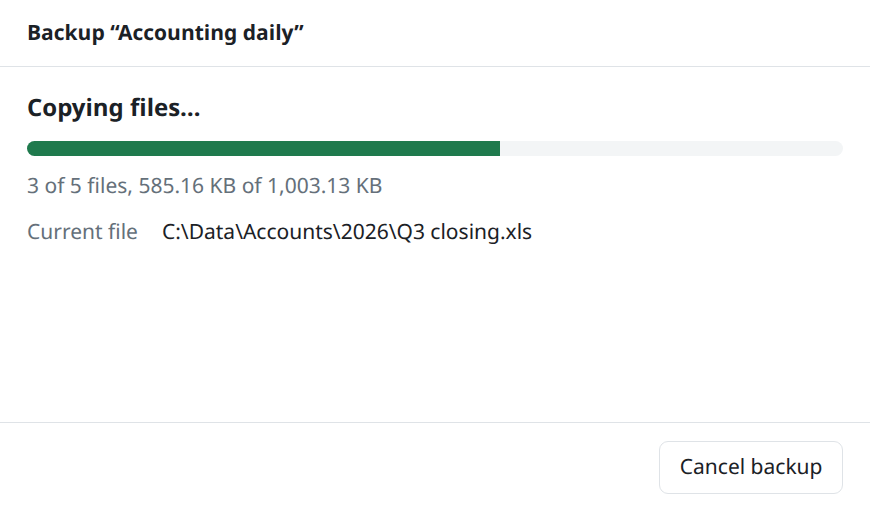
A double-click on the icon starts the backup immediately. A small window opens showing the progress and the current file. At the end it shows the result. Close exits the program.
If WIN_DASI is already open, the open window takes over the backup. If another backup is running there, a notice appears; only one backup runs at a time.
Good to know
- The icon always runs the current state of the profile. If you later change the selection or the destination, you do not have to create the icon again. It also survives renaming the profile.
- If the profile is deleted, the icon reports that the profile no longer exists. Then delete the icon from the desktop.
- For several profiles, create several icons.
- If the profile asks about existing files, the questions also appear in the express window. For a backup without questions, choose “always overwrite” in the profile.
Express icon or schedule?
The express icon fits when the destination is not always connected, for instance a USB drive that is only plugged in for backing up: plug in, double-click, unplug. The automatic backup fits when the destination is always reachable, for instance a network share. Both can be used for the same profile.