
Backing up to the cloud and to servers
Instead of a folder, a profile can back up to remote storage: your own Nextcloud, a NAS, a rented server or a storage service. That way one copy of your data is kept off-site.
Which destinations there are
| Destination | Suited to | You need |
|---|---|---|
| WebDAV | Nextcloud, ownCloud, many NAS devices and hosting providers | Address, user name and password. For Nextcloud and ownCloud preferably an app password. |
| S3-compatible storage | Amazon S3, Backblaze B2, Wasabi, Hetzner Object Storage, MinIO and others | Bucket, access key and secret key; except for Amazon S3 also the endpoint of the provider. |
| SFTP server | your own servers, rented servers, NAS devices | Server, user name and password or a key file. |
| OneDrive, Google Drive, Dropbox | the services named | a one-time setup (see below), after that only the sign-in in your browser. |
Setting up the destination
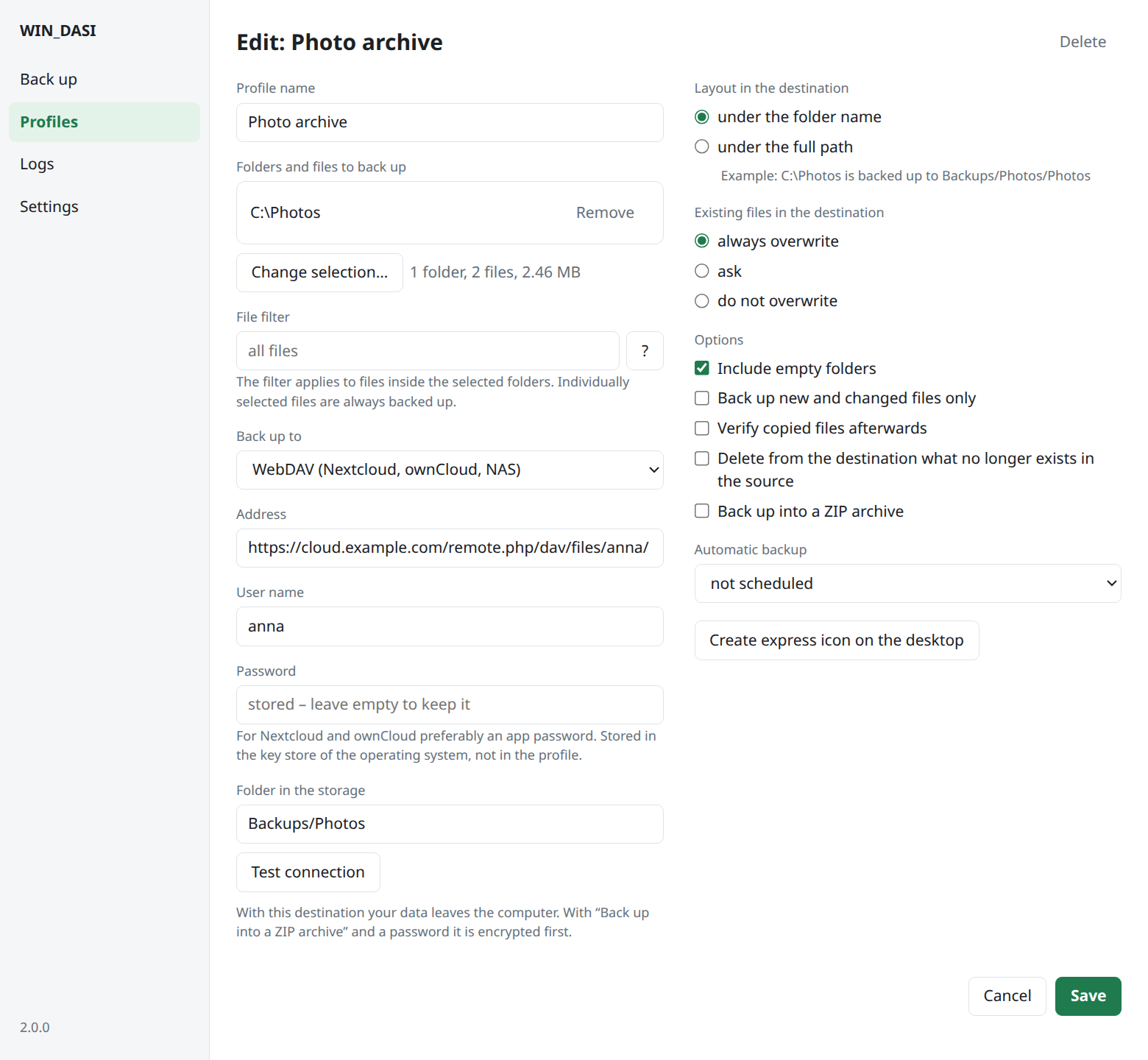
- Under Profiles, open the profile with Edit or create a new one.
- Choose the kind of destination under Back up to.
- Enter the connection details. Under Folder in the storage you define where the backup goes, for example
Backups/Office-PC. WIN_DASI creates missing folders. - Click Test connection. This checks address and credentials without backing anything up.
- Click Save.
Passwords and secret keys are not stored in the profile but in the key store of the operating system. On another computer you enter them again.
Confidentiality: with these destinations your data leaves the computer. With Back up into a ZIP archive and Protect archive with a password it is encrypted before the upload (AES-256). The operator of the storage then cannot read it. ZIP archive and password
What differs from backing up to a folder
- Back up new and changed files only: a file counts as unchanged if it has the same size in the destination and is not older there than the original.
- Verify copied files afterwards compares the size in the destination with the original.
- ZIP archive: the archive is first created in the temporary folder and then uploaded as one file. That folder needs as much free space as the archive will take.
- S3 storage has no empty folders; they are not created there.
- Restored files carry the date of the restore.
- If there is no connection at the time of the backup, nothing is backed up. For an automatic backup this is recorded in the log.
SFTP: the fingerprint of the server
The first time you use Test connection, WIN_DASI remembers the fingerprint of the server and shows it in the profile. It is checked on every backup. If the server later identifies itself differently, no connection is made – this keeps your data from ending up on someone else’s computer. If the server really has been set up again, delete the fingerprint in the profile and test the connection once more.
The folder in the storage starts from the folder you land in after signing in. If it begins with /, it starts from the top level of the server, for example /srv/backup.
Setting up OneDrive, Google Drive and Dropbox
These three services only admit programs that are registered with them as an application. As long as no application ID has been entered, the service is marked “not set up”. The setup is needed once per computer:
- Register an application with the provider: with Microsoft in the Entra admin center under “App registrations”, with Google in the Cloud Console as an “OAuth client ID” of type “Desktop app” (with the Google Drive API enabled), with Dropbox in the App Console.
- Enter
http://localhost:53682/there as the redirect URI. - Enter the IDs in WIN_DASI under Settings in the section Cloud services and save.
- Choose the destination in the profile and click Sign in to …. Your browser opens; once you have agreed, the profile is signed in.
With Google Drive, WIN_DASI only sees files it has stored there itself.
The cloud alone is not a backup strategy
An off-site destination protects against fire, theft and water damage. Even so, do not rely on a single place: the 3-2-1 rule recommends a second copy on a drive of your own. With two profiles – one to the external drive, one to the cloud – that is quickly set up.