
Troubleshooting
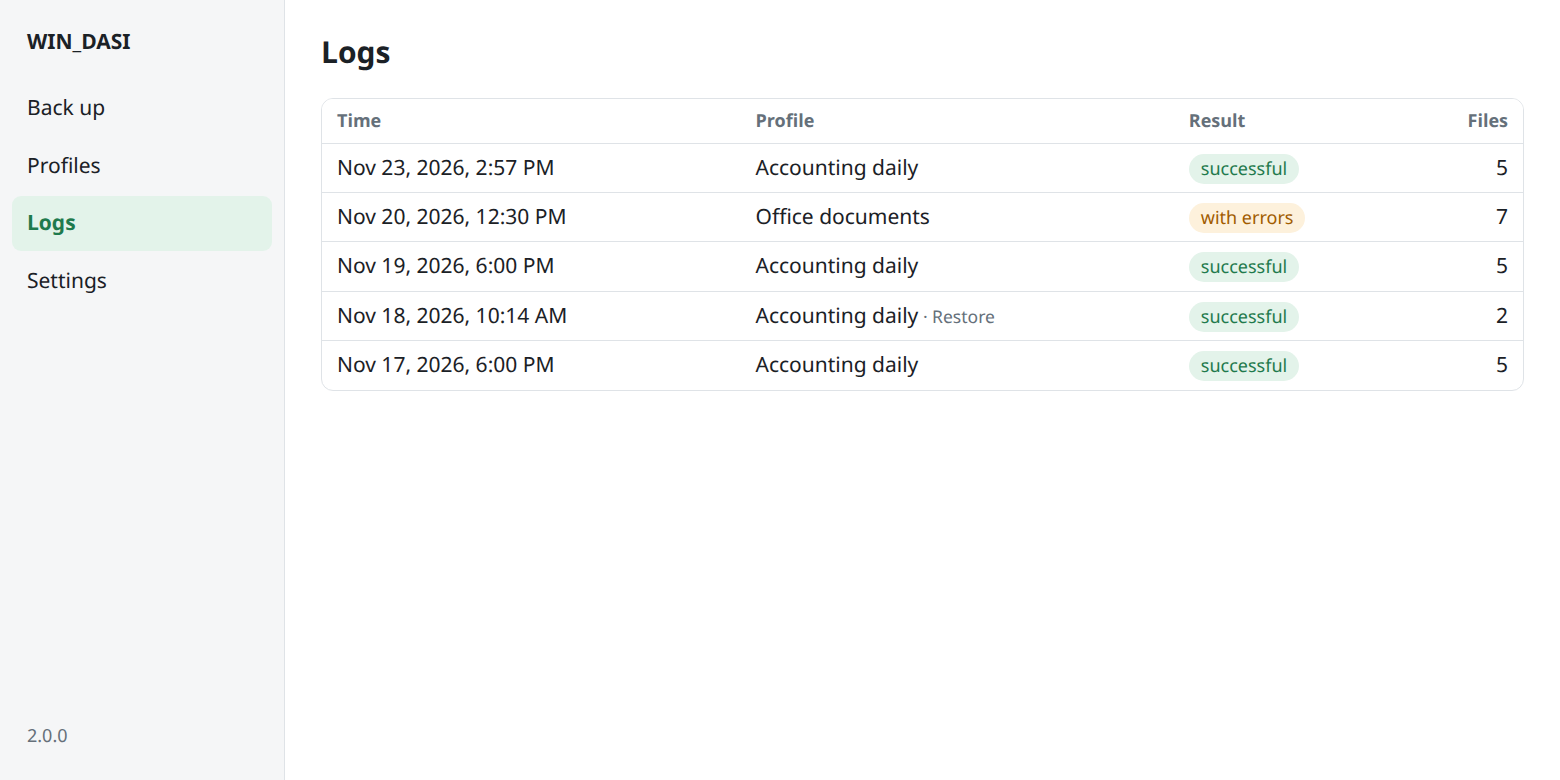
The most frequent messages, their cause and what you can do. The exact reason for an error is always given in the log in the “Logs” view.
Messages while backing up
The destination folder does not exist
The drive or network share is not connected, or the drive letter has changed. Connect the drive and back up again. If a USB drive has been given a different drive letter, adjust the destination folder in the profile or assign the drive a fixed letter in Windows Disk Management.
The file is open in another program
A program holds the file locked exclusively, often an e-mail program, a database or accounting software. Close the program and back up again. All other files have already been backed up.
Access denied
Your user is not allowed to read the file or folder, or to write to the destination. Check the permissions. For network shares, check that you are signed in with the right user.
There is not enough free space on the destination
The backup is incomplete. Free up space or choose a larger destination. If the destination fills up over time because deleted files are kept in the backup, tidy the destination by hand or consider the option “Delete from the destination what no longer exists in the source”.
The destination folder is inside the folders to be backed up
The backup would back itself up. Choose a destination folder outside the backed-up folders, ideally on a different drive.
Two selected folders have the same name
With the layout “under the folder name”, both would end up in the same place in the destination. In the profile, choose the layout “under the full path”.
No files that can be backed up were found
The selected folders are empty or cannot be reached, or the file filter matches no file. Check the selection and the filter.
The path is too long for the destination
Very deeply nested folders can exceed the path length of the destination file system. Choose the layout “under the folder name” and a short destination folder, or back up into a ZIP archive.
A backup is already running
Only one backup runs at a time. Wait until it has finished. It may also be an automatic backup in the background.
Password and archive
The archive password was not found
The keychain of this computer holds no password for the profile. This happens when the profile comes from another computer or the keychain has been reset. Set the password again in the profile with “Change password…”.
The stored password does not match the archive
The archive was created with a different password from the one stored now. In the profile, set the password the archive was backed up with and repeat the restore.
The keychain cannot be accessed
On Linux a keyring service must be running, for example GNOME Keyring or KWallet, and it must be unlocked. On computers without such a service, use the command line with the environment variable for the password.
Automatic backup
The automatic backup did not run
Check in this order: Was the computer switched on at the scheduled time and your user signed in? Could the destination folder be reached? Is there an entry under “Logs” at the scheduled time? An entry marked “failed” gives the reason. If there is no entry at all, the program was not started; open the profile, save the schedule again and note the message.
The automatic backup could not be set up
WIN_DASI could not register the task with the scheduler of the operating system. On Linux the crontab program must be present. In managed environments a policy may forbid creating scheduled tasks; in that case contact your IT support.
If none of this helps
Under Logs, open the log of the run concerned and switch on Show errors only. With this information we can help you specifically: Contact.